IPD — admissions, beds & discharge
The IPD workspace connects admissions, ward and bed occupancy, daily care, MAR, stock, services, running charges, payments, and discharge.
IPD management
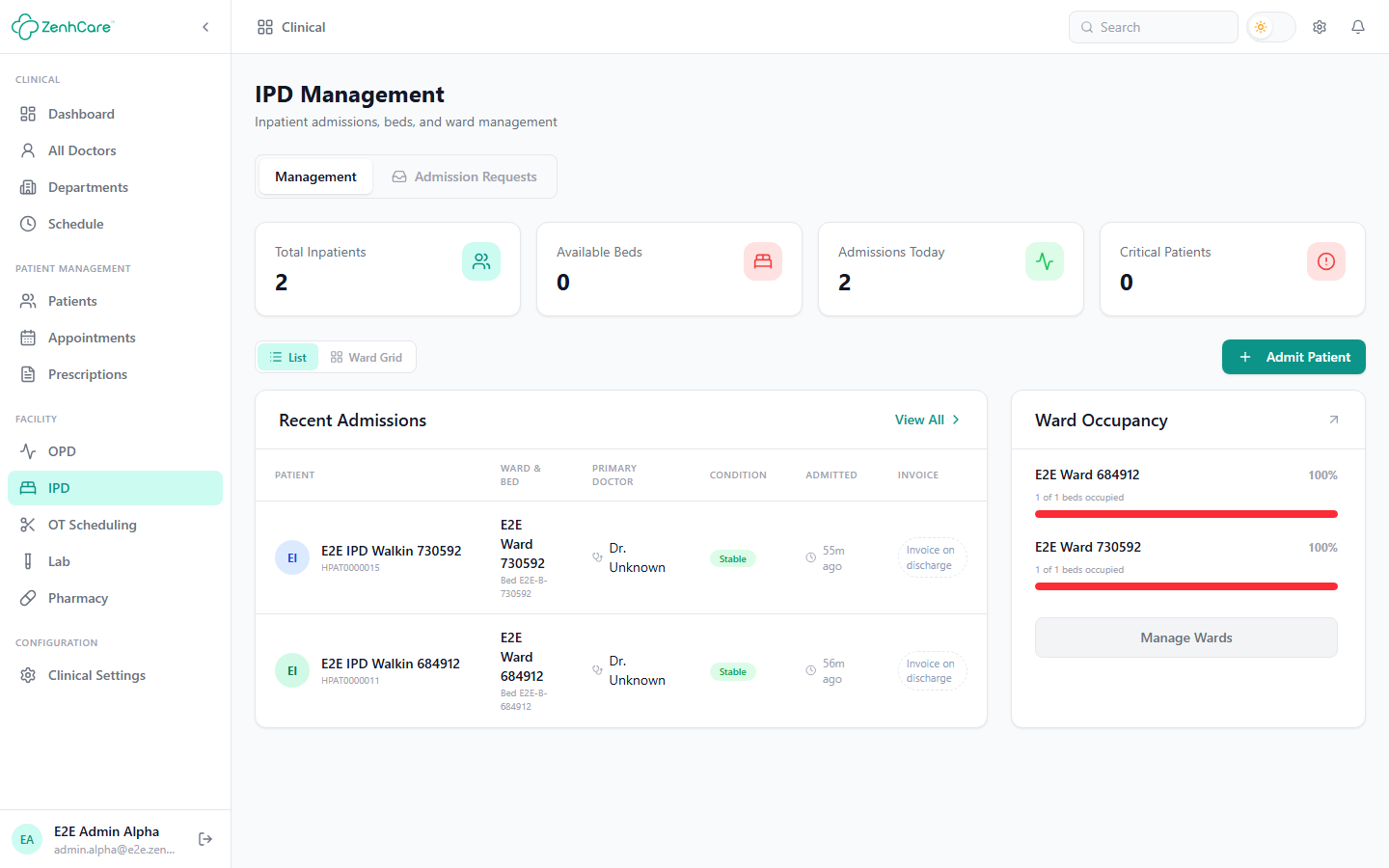
- Purpose: Manage wards, beds, admissions, inpatient care, charges, medication administration, transfers, and discharge.
- Access: Clinical → IPD. This area requires the IPD module.
Admit a patient
- Select Admit Patient.
- Find or create a patient.
- Select Department/Specialty, admitting/attending doctor, Ward, and Bed.
- Enter Admission Reason and choose Patient Condition: Stable, Fair, Serious, or Critical.
- Enter the admitted date/time. The screen allows limited backdating and does not accept a future admission.
- Choose care/billing options where offered: standard/custom stay, package and package fee, and room/bed billing setup.
- Submit.
Required fields shown are Patient, Ward, Bed, Admission Reason, and conditional package fields. After submission, the bed becomes occupied and the admission opens in the active-admissions list.
Admission requests
- Open the IPD Admission Requests view to process patient-app requests.
- Approval fields include Admission Date, optional Admission Diagnosis, and optional Expected Discharge, followed by ward/bed/doctor assignment in the admission flow.
- Rejection requires a reason shown to the patient.
- Approval creates an active admission and shows the assigned ward/bed/doctor in the patient app.
Admission detail and daily care
Open an admission to use these areas:
- Patient details and admission: Review status, ward, bed, doctor, condition, dates, and running stay information.
- Daily round: Select round doctor, add clinical notes and plan, and optionally enter BP, pulse, temperature, and SpO₂. Saving adds the round to the stay history.
- Diet order: Diet is required; instructions are optional. Saving adds the current order to the admission.
- Duty coverage: Select a duty doctor, shift, start/end, fee, and notes. Saving associates coverage with the patient.
- Transfer patient: Select target ward and bed. Saving releases the old bed and occupies the new one.
- Add charge: Enter description, category/type, quantity, amount/fee, discount, date, and optional note/referral details. A charge can be waived when that option is available. Saving adds it to the running bill.
- Record payment: Choose Deposit, Interim payment, Refund, or Other as offered; enter amount, method (Cash, Card, Mobile banking, Bank transfer, or Other), and optional reference/note. Saving updates the running balance.
- Visiting doctor visit: Enter doctor name, date, fee, optional note, whether collected outside the IPD bill, and optional referrer/split. Saving adds the visit and any billable amount.
- Order Lab Test: Select one or more tests, priority (Routine, Urgent, STAT, or Critical where shown), date, instructions, and optional referrer. Saving creates lab orders linked to the stay.
- Schedule OT: Select the patient/surgeon/room/time and procedure details. Saving creates an OT schedule linked to the admission.
- Inventory charge: Select an item, quantity, and optional unit charge. Saving consumes available stock and adds a patient charge.
- Give medicine/items to patient: Select stock lines, quantity, optional prescription, and notes. Saving issues from the ward store and charges the stay.
- Return to store: Enter return quantity, reason, optional note, and value where shown. Saving restores stock and creates a return record. Refund or Close without refund is then handled in the returns section using method, reference, and notes/reason.
- Ancillary service: Select housekeeping/laundry/kitchen service, quantity, unit charge, bill-to-patient option, and optional notes. Saving creates the service request; completing a billable service adds its charge.
- Guest cabin: Enter guest name, number of guests, relationship, phone, and select a free bed. Approval allocates that bed as the family cabin.
- Generate bill: Builds or refreshes the admission bill from its recorded billable items.
Medication Administration Record (MAR)
- Open Clinical → MAR Board for doses due across wards, or open the MAR card inside an admission.
- The board can show Overdue, Due now, and Next 4 hours within a From/To range.
- New order required fields: Medicine and Dose. Select unit, route, frequency, times for a custom frequency, start, duration/end, instructions, and controlled-drug flag. PRN orders can include indication, maximum per day, and minimum hours between doses. Items can be pulled from the stay's prescriptions.
- Frequencies include once/twice/three/four times daily, fixed hourly intervals, STAT, PRN, and Custom times.
- Chart a dose: Mark Given, Held, Refused, or Missed. Given entries include amount/unit, given time, and staff member. A controlled drug requires a witness. Non-given outcomes require a reason such as Patient refused, Nil by mouth, Vomiting, Asleep, No stock, Clinical hold, Off ward, or Other.
- Correct a record: Enter why it is being corrected; ZenhCare preserves the correction history.
- Order actions: Hold (reason required), Release, Stop, Verify, Give PRN, refresh, and print MAR sheet.
- After charting: The dose cell updates with status and staff attribution; the board refreshes the due/overdue counts.
Discharge
- Select Discharge from the admission.
- Complete any needed sections: Chief Complaint, History, On Examination, Investigations, Hospital Course, Procedures, Final Diagnosis, Medication, Advice, and Follow Up.
- Pull relevant admission information, apply section templates, or save a section/composite template for reuse.
- Preview the discharge report and select the print template.
- Add an optional discharge note and finalize.
After finalization, ZenhCare marks the patient discharged, releases the bed, creates the discharge report, and attempts to raise the final bill. The success dialog offers report/bill actions. If billing cannot be raised, the discharge can still succeed and the screen warns the user.